Top 10 AI Tools That Can Increase Your Productivity
By Kaushal Patel13 min read
The right AI tools for productivity can give you back hours every week: inbox triage in minutes, meetings that summarise themselves, research with sources attached, first drafts in seconds and repetitive tasks that run on their own. The wrong approach, signing up for every new app, just adds more tabs.
This guide covers the 10 best AI productivity tools worth knowing in 2026, grouped by the job they do: AI assistants for writing and thinking, AI inside Google Workspace and Microsoft 365, research, notes, AI meeting notes, design, AI automation and coding. You’ll also find a comparison table, ready-to-copy prompt templates, and a simple way to choose where to start.
Does AI really make you more productive?
Used well, yes, and there’s solid research behind it. A study published in Science (Noy & Zhang, 2023) found that professionals using ChatGPT finished writing tasks about 40% faster, with higher-rated quality. In GitHub’s controlled experiment, developers using GitHub Copilot completed a coding task about 55% faster. A Harvard Business School and BCG study of consultants found that those using GPT-4 completed more tasks, faster and at higher quality, but did worse than the control group on a task outside the AI’s strengths.
That last finding is the important one: AI is a powerful assistant, not an oracle. The gains come from using the right tool for the right task, and checking its work.
The best AI tools for productivity at a glance
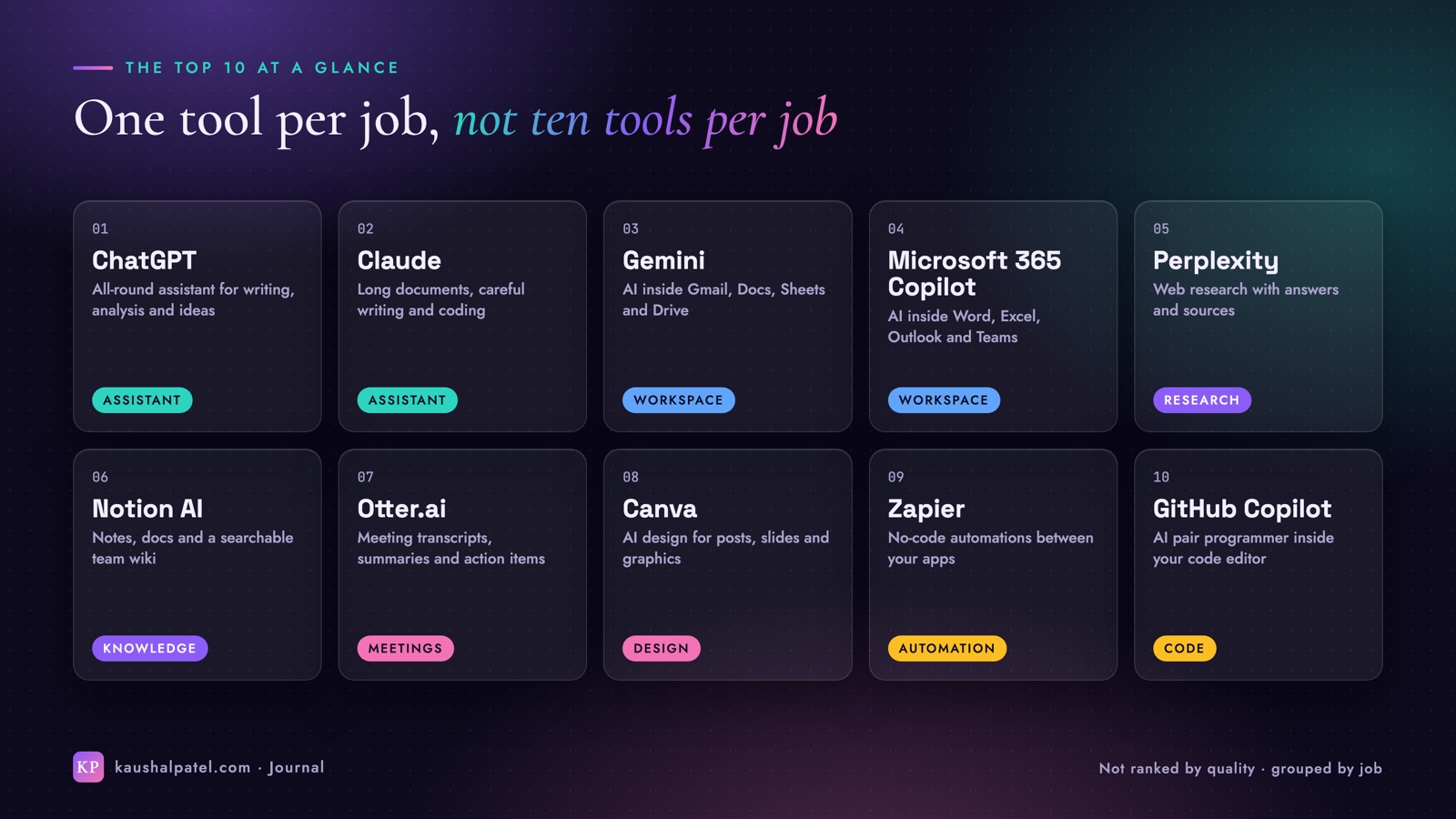
The top 10, grouped by the job they do, not ranked against each other.
#
AI tool
Best for
Works inside
Watch out for
1
ChatGPT
All-round writing, analysis, ideas, files and images
Web, desktop and mobile apps
Confident-sounding mistakes; verify facts
2
Claude
Long documents, careful writing, analysis and coding
Web, desktop and mobile apps
Same as any assistant: check important claims
3
Gemini
Email, docs and sheets for Google Workspace users
Gmail, Docs, Sheets, Drive, Meet
Business features depend on your Workspace plan
4
Microsoft 365 Copilot
Word, Excel, PowerPoint, Outlook and Teams work
Microsoft 365 apps
Needs an eligible licence; set up permissions first
5
Perplexity
Fast research with linked sources
Web and apps
Open the sources; summaries can still be wrong
6
Notion AI
Notes, docs, wikis and finding answers in them
Notion workspace
Only as good as what your team writes down
7
Otter.ai
AI meeting notes, transcripts and action items
Zoom, Google Meet, Microsoft Teams
Tell participants you’re recording
8
Canva
Quick social posts, slides and graphics with AI
Canva web and apps
Keep designs on-brand; check image rights
9
Zapier
AI automation between thousands of apps
Your existing apps, connected
Test workflows before trusting them with customers
10
GitHub Copilot
Writing, explaining and reviewing code
VS Code, JetBrains IDEs, GitHub
Review every suggestion like a colleague’s code
Features and pricing change often, and most of these tools offer a free tier or trial alongside paid plans. Check each tool’s current plans before you commit your team.
The top 10 AI tools, one by one
1. ChatGPT: the best all-round AI assistant
ChatGPT by OpenAI is the most widely used AI assistant, and the easiest place to start. It drafts emails and documents, summarises long text, brainstorms ideas, explains concepts, analyses spreadsheets and PDFs you upload, and understands images. Projects and custom GPTs let you keep context and instructions for recurring work.
Use it for: first drafts, rewriting, summarising, planning and quick data analysis. Productivity tip: save your best prompts (see the templates below) instead of starting from scratch every time.
2. Claude: best for long documents and careful writing
Claude by Anthropic is a strong alternative general assistant, particularly good with long documents, nuanced writing, structured analysis and coding. You can upload contracts, reports or research papers and ask questions across them, and use Projects to keep shared context for ongoing work.
Use it for: reviewing long documents, writing that needs a careful tone, and technical work. Productivity tip: most people only need one general assistant, so try ChatGPT and Claude on your real tasks for a week, then keep the one you prefer.
3. Gemini: AI inside Gmail, Docs and Sheets
If your work lives in Google Workspace, Gemini brings AI to where you already are: summarising long Gmail threads, drafting replies, writing and refining in Docs, helping with formulas and tables in Sheets, and finding files in Drive. Fewer copy-pastes between tabs means real time saved.
Use it for: inbox triage, document drafting and spreadsheet help inside Google apps.
4. Microsoft 365 Copilot: AI inside Word, Excel, Outlook and Teams
For Microsoft-based teams, Microsoft 365 Copilot works across Word, Excel, PowerPoint, Outlook and Teams. It can summarise email threads and Teams meetings, draft documents from your files, analyse data in Excel and turn a document into a first-draft presentation.
Use it for: meeting recaps, email catch-up and document-to-deck work. Watch out: Copilot can only see what your permissions allow, so tidy up file sharing before rolling it out.
5. Perplexity: the best AI research tool
Perplexity is an AI answer engine: ask a question and it searches the web, writes a summary and links the sources it used. That makes it far quicker than ten browser tabs for market research, competitor checks, technical questions and fact-finding.
Use it for: research briefs and quick answers with citations. Productivity tip: open the two or three most important sources before you rely on an answer.
6. Notion AI: notes, docs and a searchable team brain
Notion AI works inside your Notion workspace: summarising meeting notes, drafting docs, turning messy notes into action items and answering questions using your team’s pages. It’s most useful once your processes, decisions and docs actually live in Notion.
Use it for: internal wikis, project docs and “where did we write that down?” questions, including the decision logs I recommend in Building in Public as an Introverted Founder.
7. Otter.ai: the best AI meeting notes tool
Otter.ai joins your Zoom, Google Meet or Microsoft Teams calls, writes a live transcript and produces a summary with action items afterwards. You stay focused on the conversation instead of typing notes.
Use it for: client calls, team meetings and interviews. Always: tell participants the meeting is being recorded and transcribed.
8. Canva: AI design for non-designers
Canva includes a set of AI features (Magic Studio) for generating designs, writing copy, editing photos and removing backgrounds. Social posts, simple presentations and marketing graphics that used to take an hour can take minutes.
Use it for: social media posts, quick slide decks and everyday marketing visuals. Tip: set up your brand colours and fonts once so AI-generated designs stay on-brand.
9. Zapier: AI automation without code
Zapier connects thousands of apps so work flows between them automatically: a new form lead goes to your CRM, a Slack message and a follow-up email; an invoice email gets saved and logged. AI steps can summarise, classify or extract details along the way.
Use it for: any task you do the same way every week. Tip: start with one workflow that saves at least an hour a week, and test it before it touches customers. Automation works best on clean data, so if yours lives in messy spreadsheets, see From Spreadsheet Chaos to Single Source of Truth.
10. GitHub Copilot: the AI pair programmer
For anyone who writes code, GitHub Copilot suggests code as you type, explains unfamiliar code, writes tests and answers questions in your editor. It works in VS Code, JetBrains IDEs and on GitHub.
Use it for: boilerplate, tests, refactoring and learning a new codebase. Watch out: review every suggestion as carefully as code from a new teammate. (More on choosing developer tools in The Solo Founder’s Tech Stack in 2026.)
Honourable mentions
Grammarly: AI writing help everywhere you type.
NotebookLM (Google): chat with your own documents and get source-grounded answers.
Gamma: AI-generated presentations and documents.
Fireflies.ai: another strong AI meeting notes option.
Cursor: an AI-first code editor for developers.
Where AI tools save time in a workday
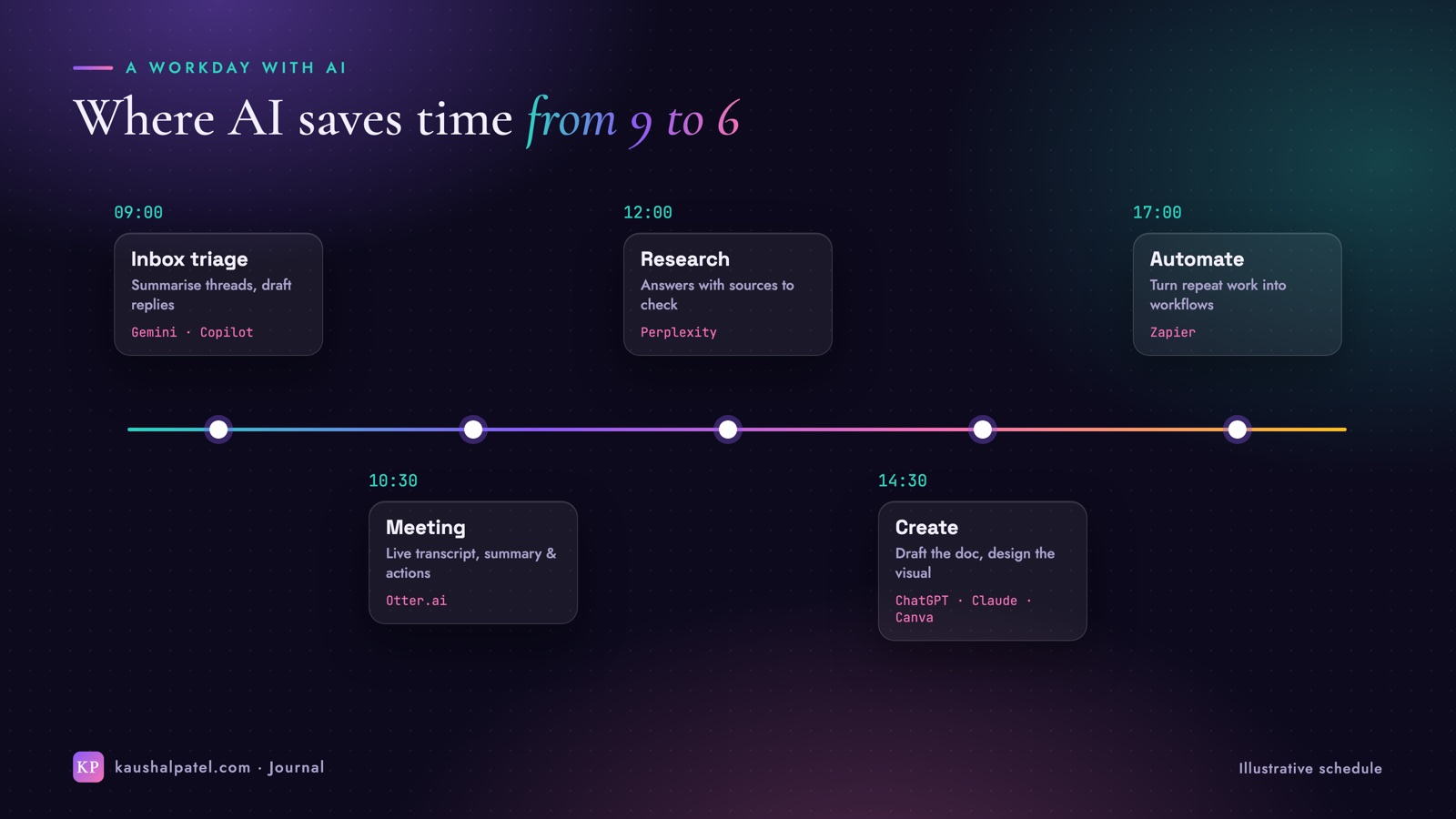
An illustrative day: the biggest wins come from repeated, everyday tasks.
Everyday task
AI tool to try
How it helps
Catching up on email
Gemini · Microsoft 365 Copilot
Summarise long threads and draft replies
Meeting notes
Otter.ai · Copilot in Teams
Transcript, summary and action items automatically
Research
Perplexity
Answers with sources in one place
First drafts
ChatGPT · Claude
Outline and draft in minutes; you edit
Reports from data
ChatGPT · Copilot in Excel · Gemini in Sheets
Explain trends, build formulas and charts
Social posts and slides
Canva
On-brand designs from a short prompt
Copying data between apps
Zapier
Automate the workflow end to end
Writing code
GitHub Copilot
Suggestions, tests and explanations in your editor
Build a simple AI productivity stack
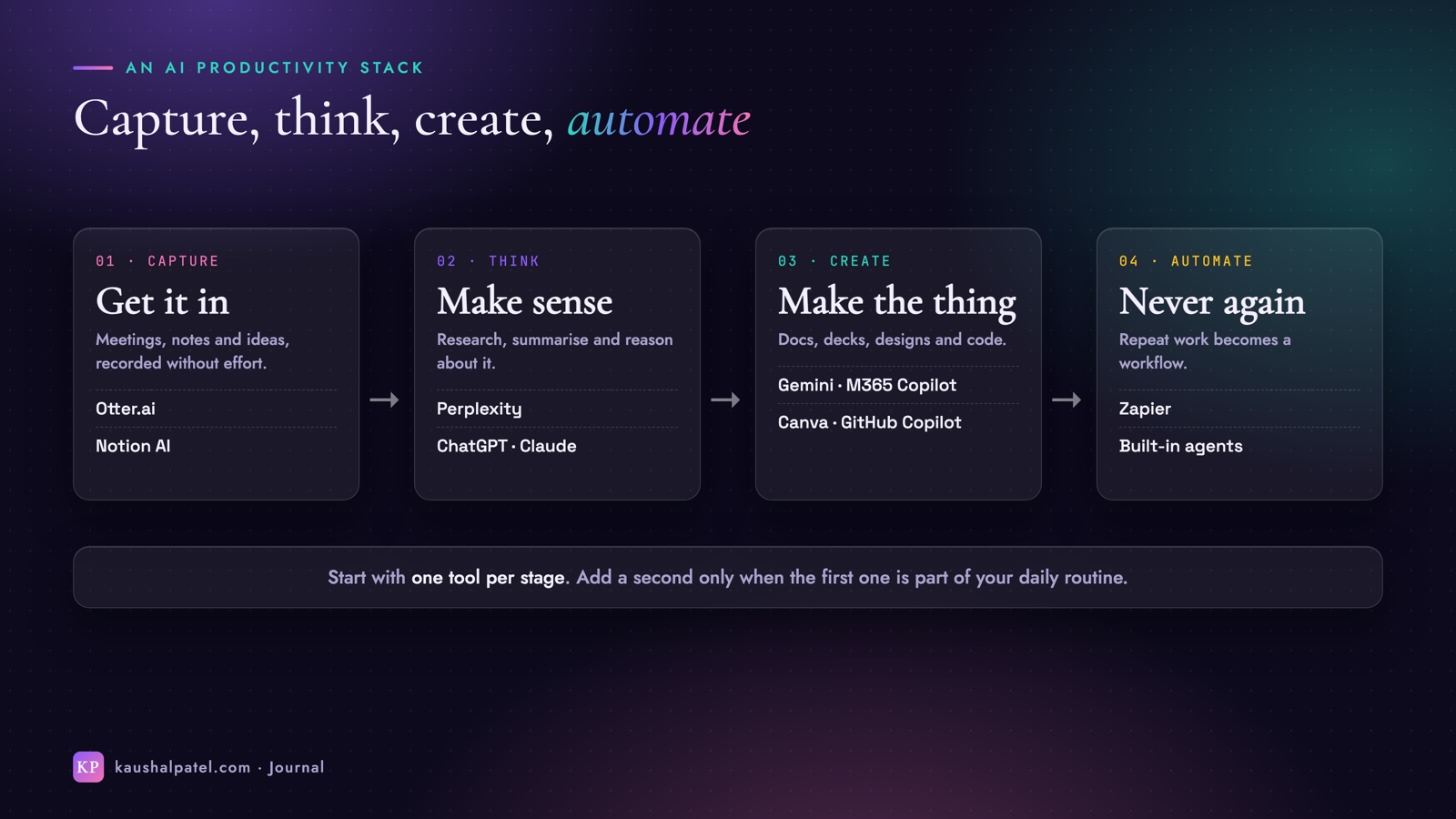
Capture, think, create, automate: one tool per stage is enough to start.
You don’t need all ten tools. Most people get the biggest gains from three: one general assistant, the AI built into their main workspace and one specialist tool for their most repeated job. That’s the same principle I use for choosing business software in general: buy what’s standard and focus your effort where it matters (see Build vs Buy: Custom Software vs SaaS).
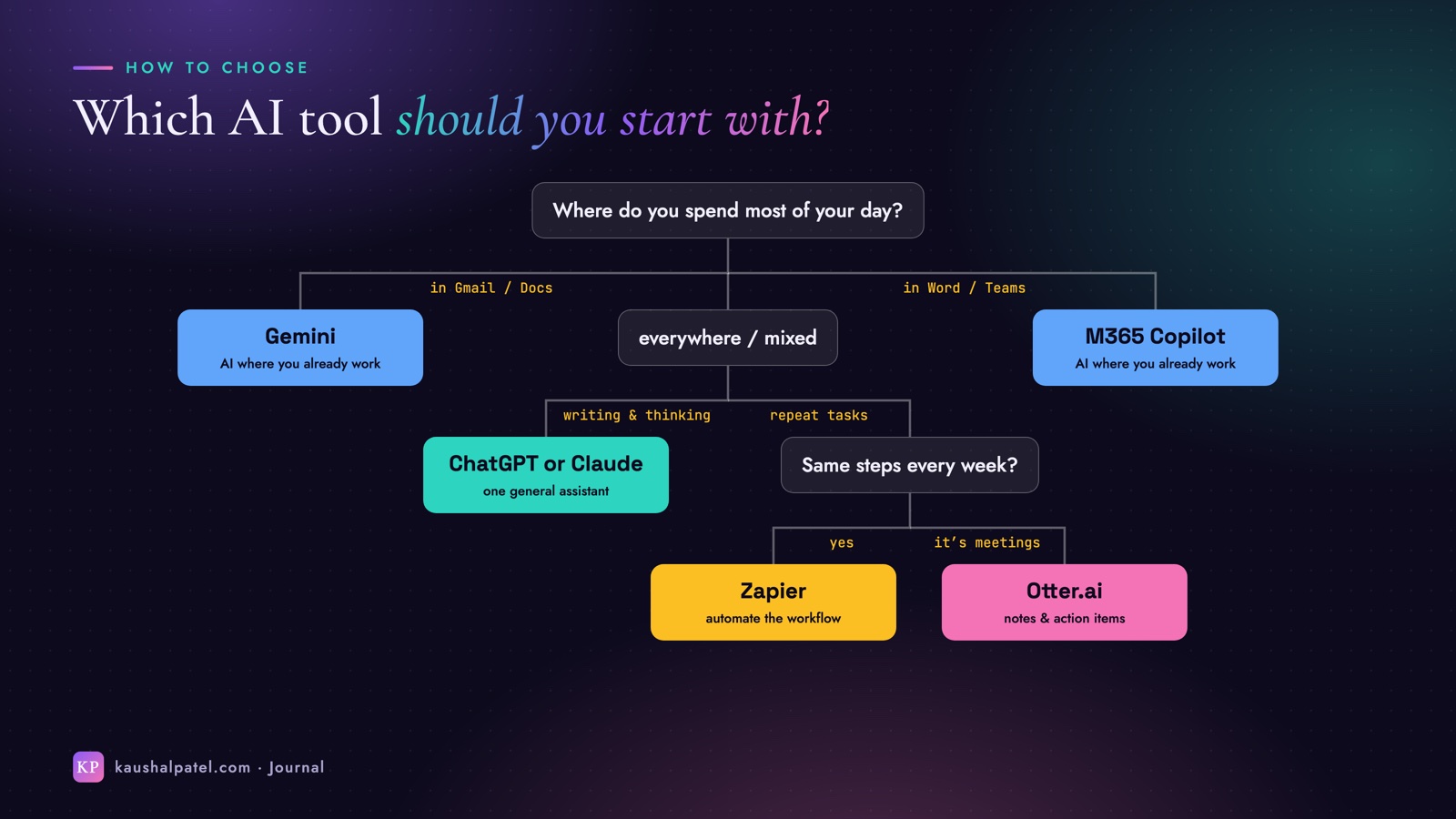
How to choose the right AI tool
Start where you spend most of your day.
Quick game · Which AI tool would you use?
Match the task to the tool
Six everyday situations. Pick your tool, then tap to see our suggestion.
You have 120 unread emails after a two-day trip.
Gemini (Gmail) or Microsoft 365 Copilot (Outlook). Summarise the important threads first and draft replies to the urgent ones.
You need a one-page brief on a competitor before a call in 30 minutes.
Perplexity. Ask for a summary with sources, then open the two most important links to confirm.
Every new website enquiry should go into your CRM and notify the sales team.
Zapier. Build the workflow once and it runs on every new lead.
You need to review a 60-page agreement and list the risky clauses.
Claude or ChatGPT. Upload the document and ask for a clause-by-clause summary. Then have a qualified person check anything important.
Your weekly team call keeps ending without clear owners for tasks.
Otter.ai (or Copilot in Teams). Get an automatic summary with action items, and share it right after the call.
You need five Instagram posts for a product launch this afternoon.
Canva. Generate on-brand designs, then use ChatGPT or Claude to polish the captions.
AI prompt templates for productivity
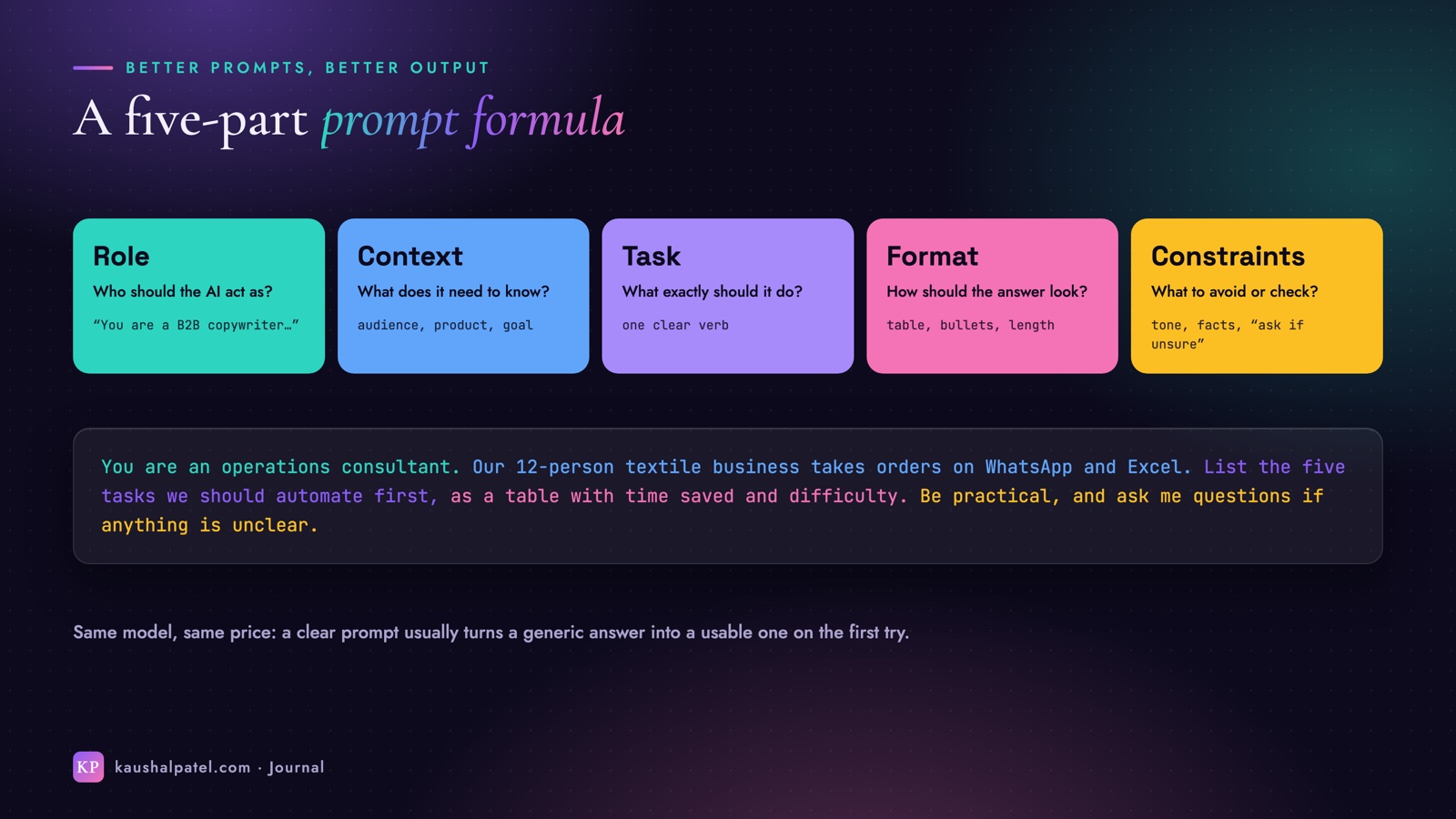
The quality of the answer depends on the quality of the question. Use this five-part formula for any AI assistant:
Role, context, task, format, constraints.
Copy these templates and fill in the brackets:
EMAIL TRIAGE
Summarise these email threads in order of urgency. For each one give:
the sender, what they need, the deadline, and a two-line draft reply.
Flag anything that needs my decision.
[paste threads]
MEETING TO ACTION LIST
From this transcript, list: 1) decisions made, 2) action items with
owner and due date, 3) open questions. Keep it under 200 words.
[paste transcript]
RESEARCH BRIEF
You are a market researcher. Give me a one-page brief on [topic] for
[audience]: key facts, 3 trends, 3 risks, and the sources you used.
Say clearly when something is uncertain.
WEEKLY REPORT
Turn these notes into a weekly update for [manager/clients]:
wins, numbers, blockers and next week's priorities.
Plain language, bullet points, under 250 words.
[paste notes]
FIND WHAT TO AUTOMATE
Here is a list of tasks I do every week, with rough time spent.
Rank the 5 best candidates for automation with tools like Zapier,
explain how each could work, and estimate the time saved.
[paste task list]
Is it safe to use AI tools at work?
AI tools are safe to use at work if you follow a few rules. Treat any AI chat like an email to an outside company:
Don’t paste confidential data (customer details, passwords, contracts, financials) into tools your organisation hasn’t approved.
Check data and training settings. Business and enterprise plans usually offer stronger privacy controls than personal accounts.
Verify facts, numbers and quotes before they go to a customer, a report or production code.
Get consent before recording meetings or calls.
Keep a human in the loop for decisions about people, money, legal matters and anything sent to customers.
A 7-day plan to get started
Day 1: List the five tasks that eat most of your week.
Day 2: Pick one general assistant (ChatGPT or Claude) and use it for one of those tasks.
Day 3: Turn on the AI in your main workspace (Gemini or Microsoft 365 Copilot) and try inbox triage.
Day 4: Record and summarise one meeting with Otter.ai or Copilot in Teams.
Day 5: Save your three best prompts as templates.
Day 6: Automate one repeated task with Zapier.
Day 7: Review what actually saved time. Keep those tools and drop the rest.
Frequently asked questions
What is the best AI tool for productivity?
For most people, a general AI assistant like ChatGPT or Claude delivers the biggest gains, because it helps with writing, summarising, research and analysis. If you live in Gmail or Outlook, the AI built into Google Workspace (Gemini) or Microsoft 365 (Copilot) is the next best step.
Are there free AI tools for productivity?
Yes. Most of the tools in this list offer a free tier or a free trial, with paid plans for advanced features, higher limits and business privacy controls. Check each tool’s current plans, because they change often.
ChatGPT or Claude: which is better?
Both are excellent general AI assistants, and the best one depends on your tasks and preferences. Try both on your real work for a week (for example, long documents, emails and analysis) and keep the one whose output needs less editing.
Which AI tool is best for meeting notes?
Otter.ai is a popular dedicated option that works with Zoom, Google Meet and Microsoft Teams. If your company uses Microsoft 365 or Google Workspace, their built-in AI meeting recaps may be enough.
How many AI tools should I use?
Start with two or three: one general assistant, the AI in your main workspace, and one specialist tool for your most repeated job. Add more only when a tool has become part of your weekly routine.
The bottom line
The best AI tools for productivity don’t replace your judgement. They remove the busywork around it: reading, summarising, drafting, formatting and copying. Pick one assistant, use the AI already inside your workspace, automate one repeated task, and check the output. Do that, and the hours add up quickly.
Want to bring AI and automation into your business processes, not just your inbox? Let’s talk. I build custom software and integrations that put these tools to work where they matter.
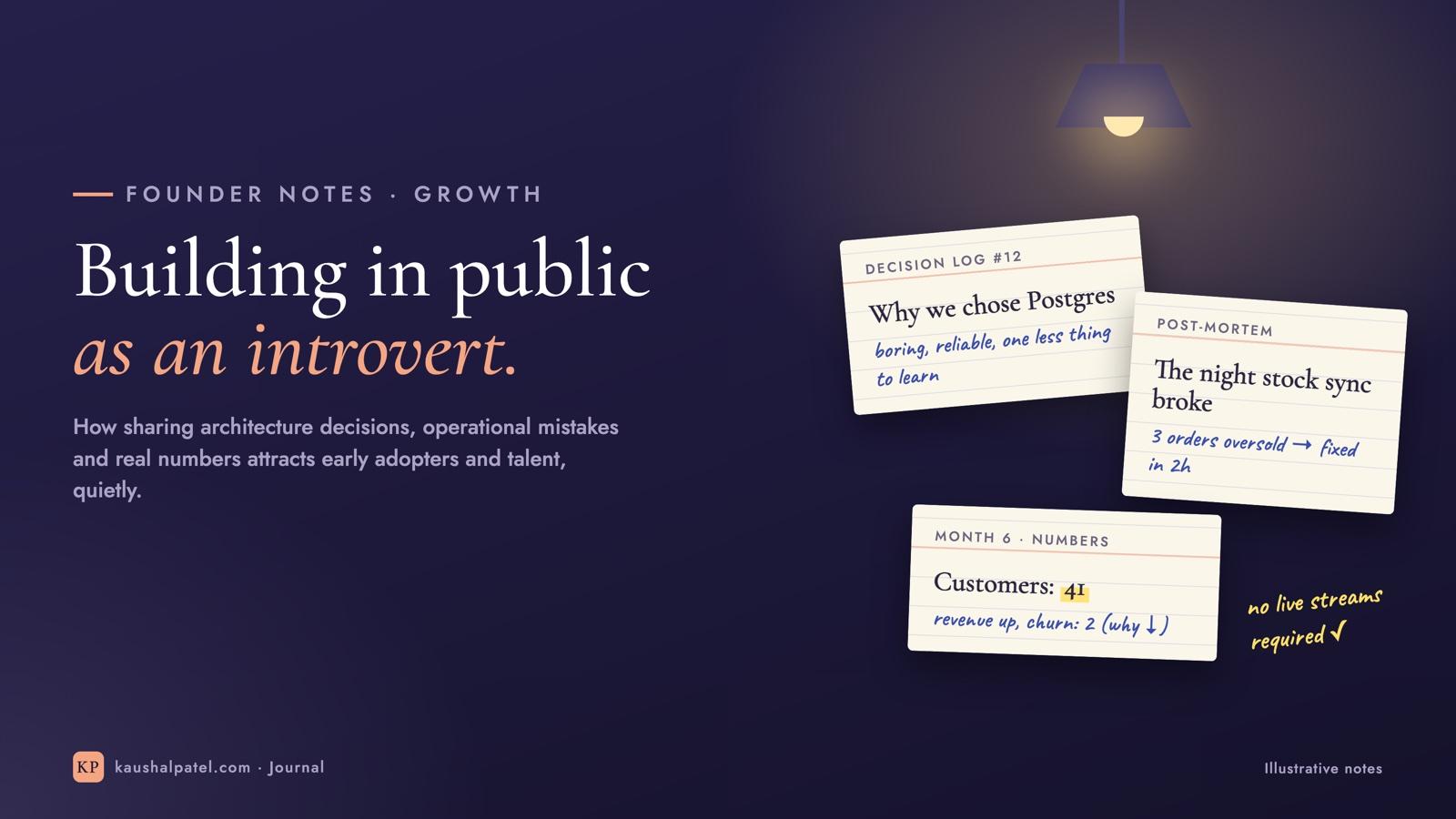
Quiet, written building in public: share architecture decisions, mistakes and real numbers to attract early adopters and talent, with an update builder.
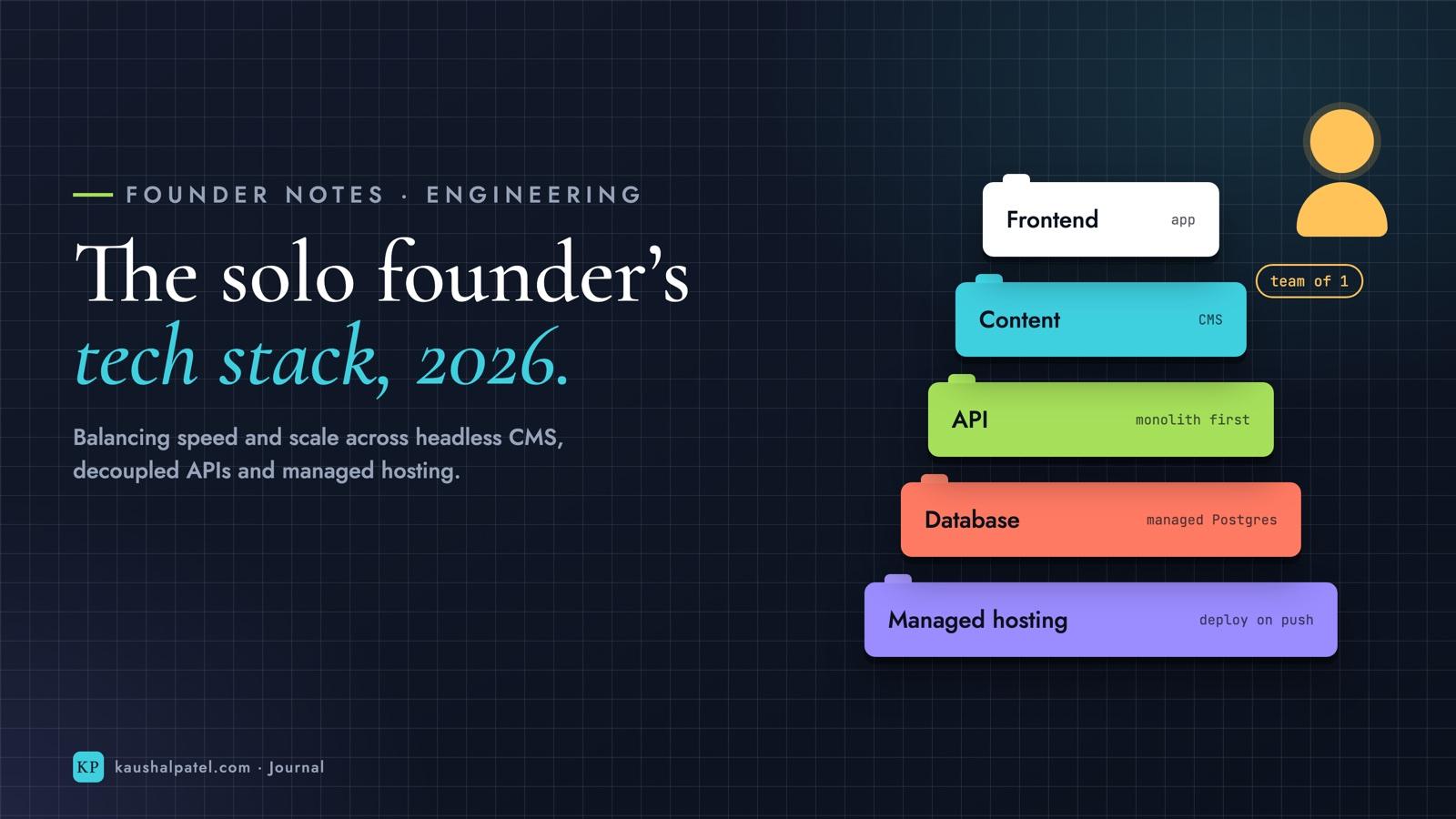
Headless CMS, decoupled APIs or a monolith, managed hosting or a VPS: how to pick a 2026 stack one person can run, with a hosting cost calculator and checklist.
Marketplace fees, ad spend and D2C acquisition: how to see your true profit per order in every channel, with a margin calculator, break-even ROAS and a roadmap.